Advertiser | Introduction
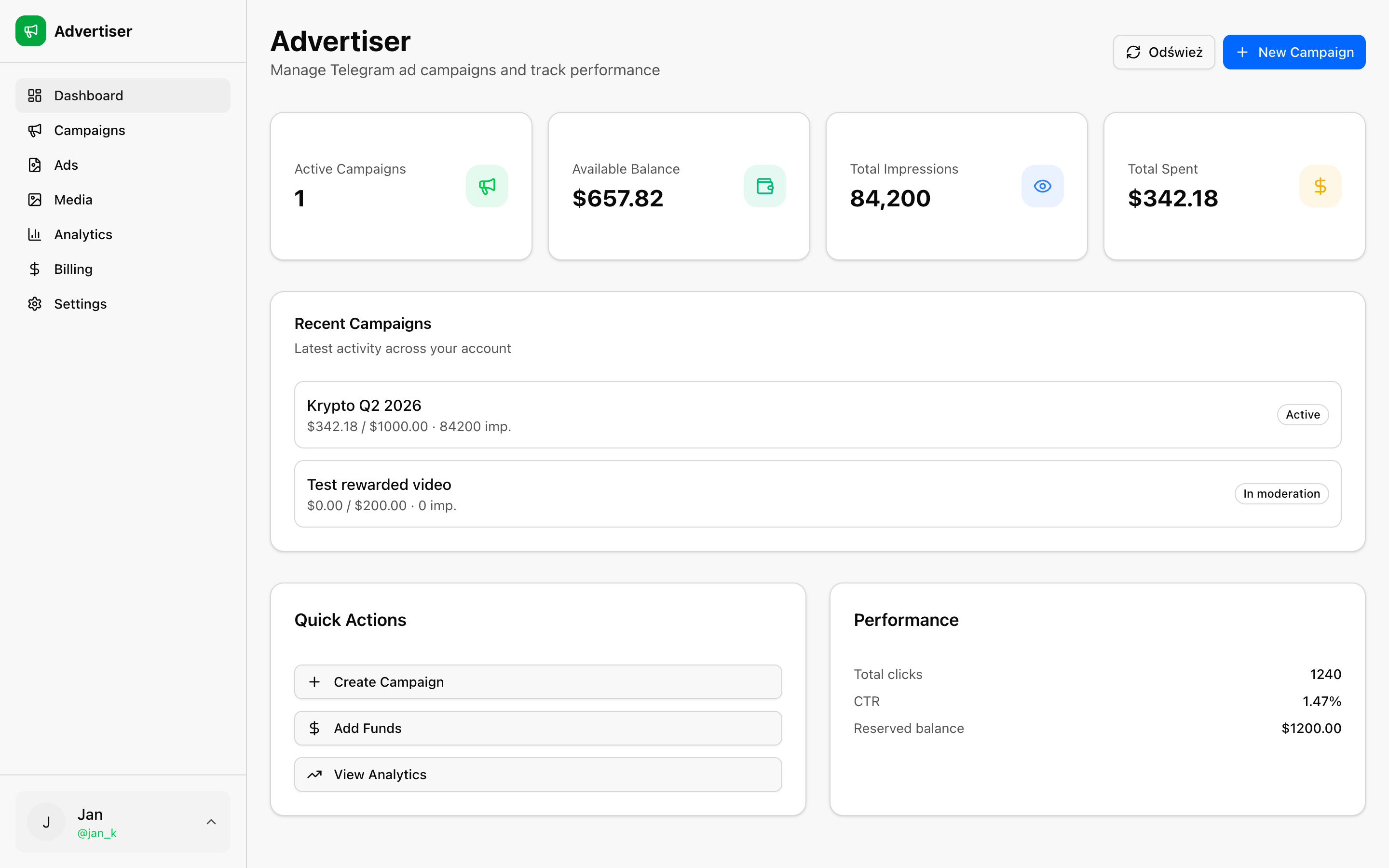
The Advertiser panel on TG.app is a self-serve dashboard for Telegram advertising: create campaigns, upload creatives, fund your wallet, and track performance. Delivery runs through TG.app's ad network.
Getting started
- Open Telegram Advertising to see formats, panel sneak peeks, and pricing context.
- Log in with Telegram and click Start campaign to open the wizard at
/advertiser/campaigns/new. - Fund your wallet on Billing (Telegram Stars, TON, or USDT), then submit your first campaign.
No approval queue: any logged-in user gets an advertiser account on first visit to the panel.
Access
| Situation | What happens |
|---|---|
| First visit | Advertiser account is created automatically with approved status |
| Returning user | Open Advertiser from the user menu or go to /advertiser |
| Billing details | Optional form at /advertiser/apply for invoices and legal regions |
Sidebar
| Page | URL | Purpose |
|---|---|---|
| Dashboard | /advertiser | Stats, wallet balance, recent campaigns |
| Campaigns | /advertiser/campaigns | Create, duplicate, submit, start/stop campaigns |
| Ads | /advertiser/ads | Ad creatives used in campaigns |
| Media | /advertiser/media | Image library for creatives |
| Analytics | /advertiser/analytics | KPIs, trends, breakdowns, CSV export |
| Billing | /advertiser/billing | Wallet top-ups and ledger |
| Settings | /advertiser/settings | Business profile |
| Billing info | /advertiser/apply | Invoicing and company details |
| Community ads | /advertiser/community-ads | Buy placements in Telegram communities |
| TG.app channel ad | /advertiser/group-ad | Sponsored post in the TG.app channel |
On mobile, the menu is behind the hamburger icon in the top bar. Desktop users can collapse the sidebar to icons.
Campaign flow (overview)
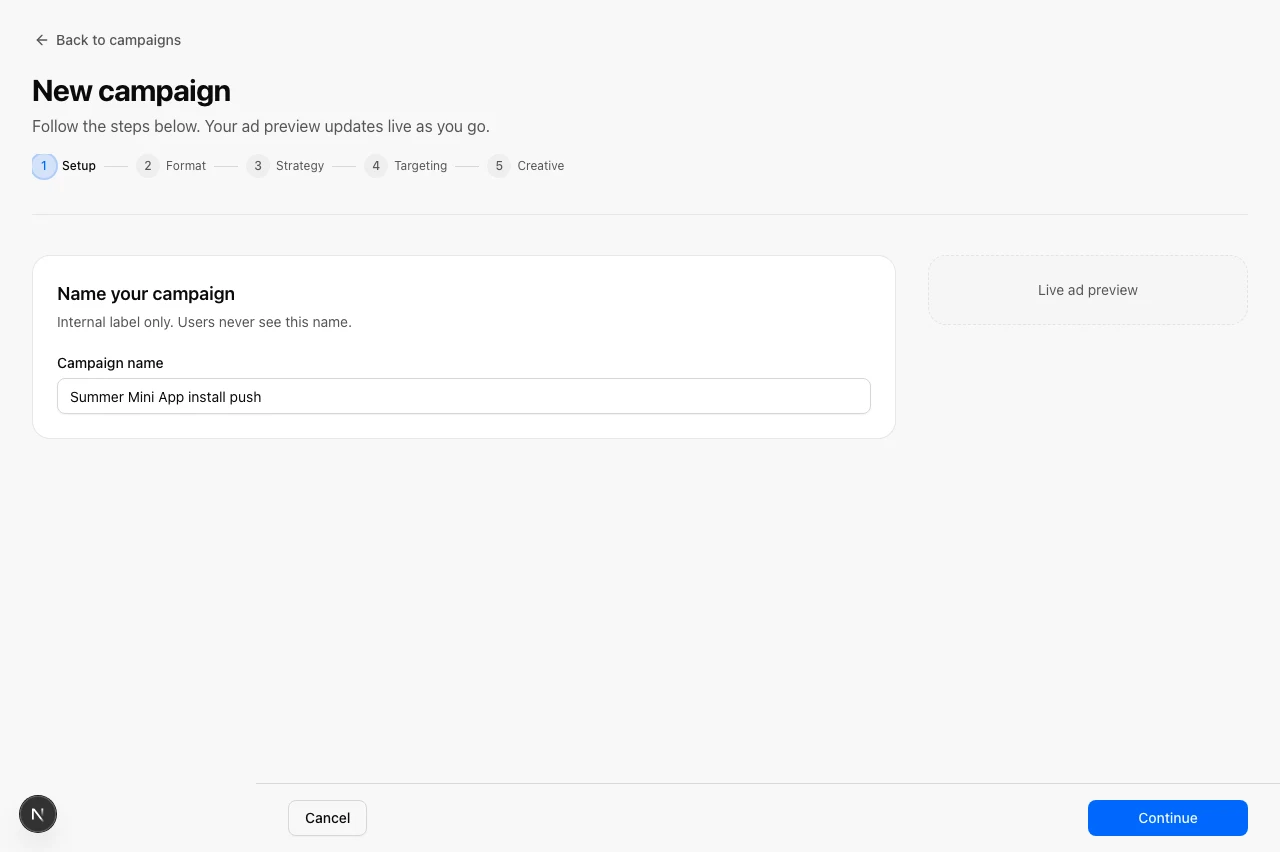
- Create: Use the 5-step wizard at
/advertiser/campaigns/new(Setup, Format, Strategy, Targeting, Creative). Save draft on any step. - Fund: Add Stars, TON, or USDT on the Billing page (minimum deposit in Products & pricing).
- Submit: Budget is reserved; campaign goes to moderation.
- Start: After approval, start delivery and use Sync now on Analytics or Refresh on campaigns to pull latest stats.
See: Dashboard, Campaigns, Analytics, Billing, Community ads.