
TiltFall: How Do You Start Your First Run on Telegram?
Learn TiltFall's starting controls, read booster locks and daily tasks, and understand local play before opening the Telegram version.
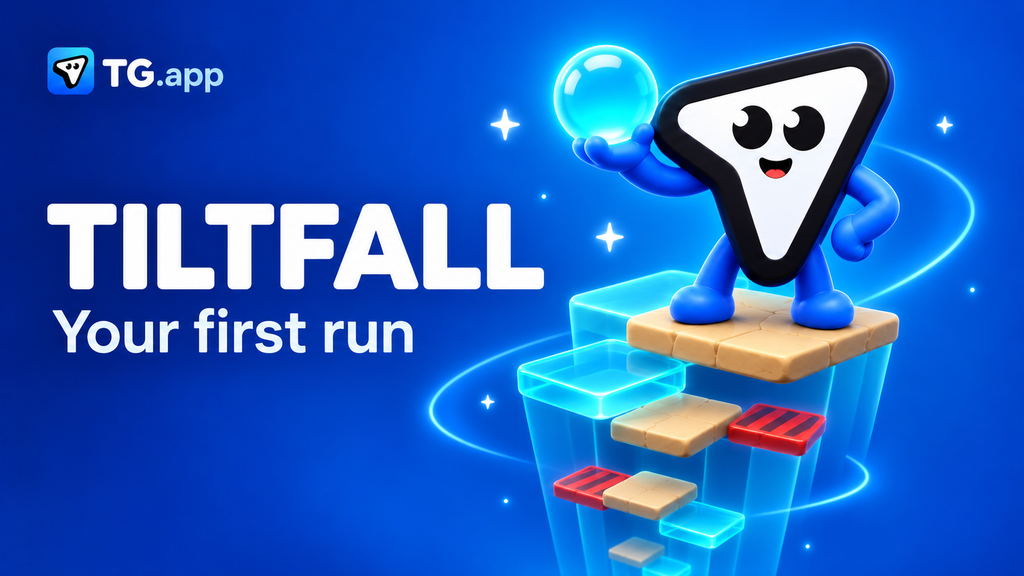
Open TiltFall, choose Play and steer the falling ball through the tower. Glass, stone and hazards make each descent a different route. For a first run, learn the steering before trying to use every booster.
You can try the controls in the official browser game before opening it in Telegram. We inspected the browser menus and started a local run on November 18, 2026. The observations below come from that local mode; Telegram cloud saves, invite rewards and cross-device progress were not tested.
How do you control the ball in TiltFall?
The browser start screen lists drag or WASD for steering, Space for jumping and 1–6 for activating boosters. Start with the steering controls: keep your attention on the next platform and the gaps around it, rather than the entire tower.
The official game describes its objective as smashing obstacles while avoiding mines. In our local run, the screen displayed a timer, score, multiplier and a separate diamond counter across the top. Watching the next landing point is more useful during play than trying to read every counter at once.
Use a first run to get comfortable with the pace. Booster shortcuts are useful later, after you have checked which boosters are actually available.
What is the difference between local play and playing in Telegram?
The website explicitly labels its starting state LOCAL PLAY. Its Play in Telegram link highlights leaderboard, cloud-save and invite features. The project's listing also describes progress following a Telegram account across devices.
For a quick control check, the browser version is convenient. For account-linked play, open the Telegram version before investing time in progression. We did not verify that a local browser run transfers to a Telegram account, so do not assume the two saves will merge.
The leaderboard itself was readable from the browser in our check. That is separate from verifying that a local score is submitted or saved to a Telegram profile.
Why are some boosters locked at the beginning?
The Boosters & Level menu gates several boosters by player level. In our level-one local session, Shield required level 3, Heavy level 6, Score ×2 level 9, Chain Bomb level 11 and Quake level 14. Agility showed a cost of 350 and the description “Razor steering until game over.”
That menu is a useful first stop before a run: a visible booster is not necessarily one you can activate yet. Our starting bank was zero, and the purchase controls were disabled. We inspected these requirements without buying anything.
The same panel showed the next level costing 2,000 and naming Ember as the next skin unlock. Treat these as the starting values observed on the review date; check your own menu for your current level and requirements.
Where do you find daily tasks and skin options?
Open Boosters & Level to find the Daily Tasks section. In the session we reviewed, it listed smashing 200 blocks, bouncing off 30 green launchers and activating 6 boosters, each with its own progress counter.
Read the objectives before playing so you know which actions count toward them. We did not complete the tasks or verify a reward claim, and the screen we inspected did not establish the daily reset time.
Skin Store is a separate option on the opening screen. The booster panel also provides a Core Store shortcut. Keeping these menus separate helps you distinguish a cosmetic choice from a level requirement or an active-run booster.
How should you read the TiltFall leaderboard?
Open Leaderboard and compare the right column for your goal. The live board we inspected had separate level, best, total and runs columns.
A player's best single run and their accumulated total are different comparisons. If you are trying to improve one descent, use best as the relevant reference rather than treating the biggest total as one run's score.
The board loaded in local mode, but we did not test score submission or the project's server-verification claim. Check the board again after a Telegram run if you want to confirm that your own result appears.
For game updates, follow TiltFall's official Telegram channel.
Learn more about TiltFall on TG.app, rate it and write a review.
Building for Telegram? Add your app, bot or channel to TG.app and help more people discover your project.
Be the first to react
Comments
No comments yet. Be the first to share your thoughts!